
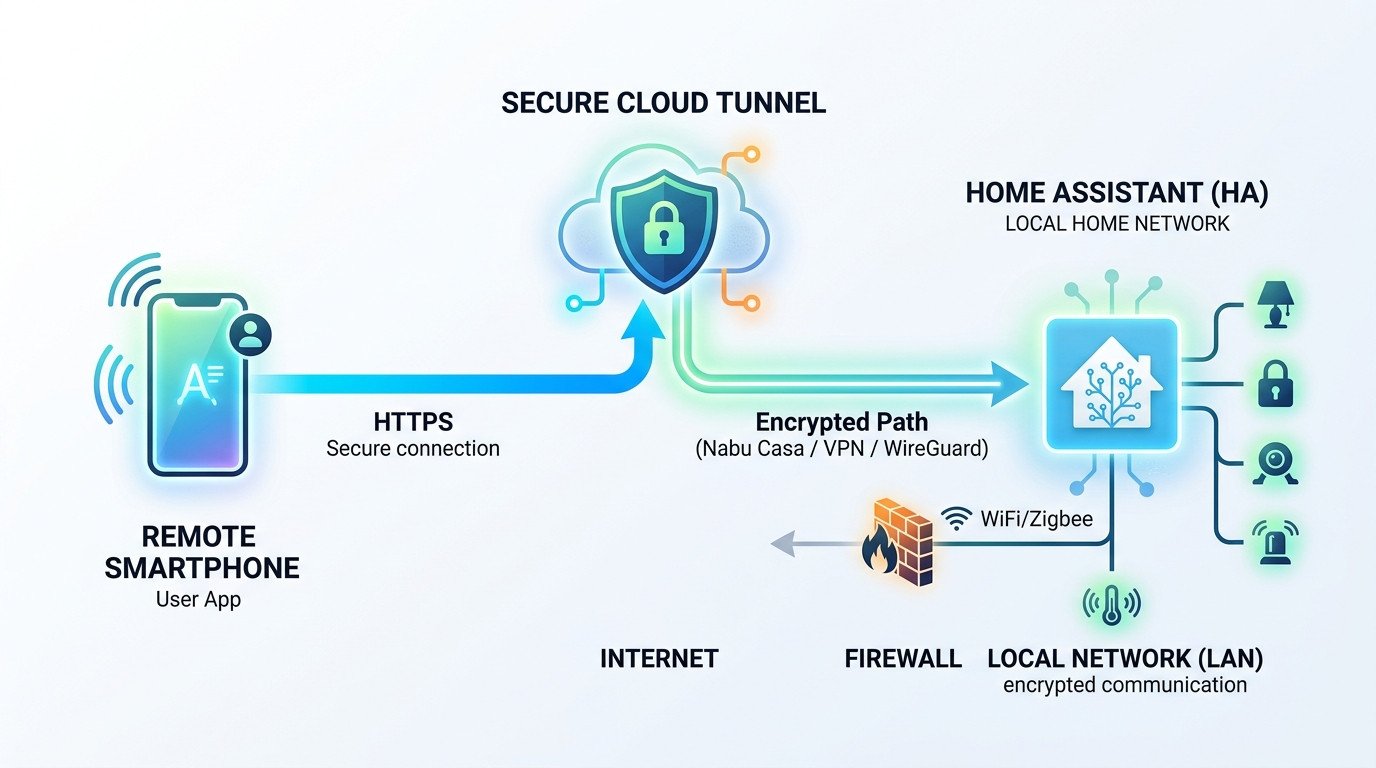
Setting up remote access to your Home Assistant instance can be challenging, especially when dealing with dynamic IP addresses. This tutorial will guide you through configuring secure remote access using Cloudflare and SyncMyIP.
Understanding the Problem
Many home internet connections use dynamic IP addresses that change periodically. This makes accessing your Home Assistant instance from outside your network difficult, as the IP address isn't consistent.
Prerequisites
- Home Assistant installation (Hass.io, Docker, or Core)
- A domain name (you can use a free one from Cloudflare)
- Cloudflare account
- Router access
Step 1: Configure Cloudflare DNS
First, set up your domain with Cloudflare:
- Create a Cloudflare account at cloudflare.com
- Add your domain to Cloudflare
- Note your Cloudflare nameservers
- Update your domain's nameservers with your registrar
Step 2: Install SyncMyIP
SyncMyIP will automatically update your Cloudflare DNS record when your IP changes:
# Install SyncMyIP on your Home Assistant system
curl -s https://syncmyip.com/install.sh | sudo bash
Step 3: Configure SyncMyIP
After installation, configure SyncMyIP with your Cloudflare credentials:
# Edit the configuration file
sudo nano /etc/syncmyip/config.json
Add your Cloudflare API token and zone information:
{
  "cloudflare": {
    "api_token": "your-api-token-here",
    "zone_id": "your-zone-id",
    "record_name": "homeassistant.yourdomain.com"
  }
}
Step 4: Port Forwarding
Configure port forwarding on your router:
- External port: 443 (HTTPS)
- Internal IP: Your Home Assistant server IP
- Internal port: 8123 (default Home Assistant port)
Step 5: Enable SSL with Cloudflare
In your Cloudflare dashboard:
- Go to SSL/TLS settings
- Set SSL mode to "Full"
- Enable "Always Use HTTPS"
Step 6: Configure Home Assistant
In your configuration.yaml file, add:
http:
  base_url: https://homeassistant.yourdomain.com
  use_x_forwarded_for: true
  trusted_proxies:
    - 127.0.0.1
    - 172.16.0.0/12
    - 10.0.0.0/8
    - 192.168.0.0/16
Testing Your Setup
Visit https://homeassistant.yourdomain.com from an external network to verify your setup works correctly.